Install Sensors
Cisco XDR is a SaaS-based security service that detects and responds to threats in IT environments, both on-premises and in the cloud. This topic explains how to deploy Cisco XDR sensors as part of your private network monitoring service, for use in enterprise networks, private data centers, branch offices, and other on-premises environments.
Note: If you plan to use Cisco XDR only in public cloud environments, such as Amazon Web Services, Microsoft Azure, or Google Cloud Platform, you do not need to install a sensor.
 Sensor Deployment Considerations
You can deploy sensors to collect flow data, such as NetFlow, or to ingest network traffic that is mirrored from a router or switch on your network. You can also configure a sensorsensor to both collect flow data and ingest mirrored network traffic. There is no limit on the number of sensors deployed.
If you want to configure a sensor to collect flow data, see Configuring a Sensor to Collect Flow Data for more information.
If you want to configure a sensor to ingest traffic from a mirror or SPAN port, see Network Device Configuration for more information on configuring your network devices to mirror traffic.
Note: Sensor version 4.0 or greater can collect enhanced NetFlow telemetry. This allows Cisco XDR to generate new types of observations and alerts. For more information, see the Enhanced NetFlow.
Note: The sensor does not support IPv6.
Sensor Prerequisites
You can install a sensor on a physical appliance or virtual machine, with the following requirements:
| Component | Minimum Requirement |
|---|---|
| Network interface |
at least one network interface, designated as the Control interface, for passing information to the Cisco XDR service Note: Optionally, if you want to configure the sensor to ingest network traffic from a network device that replicates it over a mirror port, you need one or more network interfaces, designated as Mirror interfaces. |
| RAM | 4 GB |
| CPU | at least two cores |
| Storage Space |
60 GB Note: Disk space is used to cache production NetFlow data prior to sending records to Cisco XDR. |
| Internet Access | required to download packages for the installation process |
Note the following about designated Mirror interfaces:
- Mirror interfaces receive a copy of all inbound and outbound source traffic to the destination. Ensure that your peak traffic is less than the capacity of the sensor's Mirror interface link.
- Many switches drop packets from the source interfaces if a mirror port destination is configured with too much traffic.
Physical Appliance Additional Requirements
|
Component |
Minimum Requirement |
|---|---|
| Installation File Upload |
one of the following to upload the installation .iso file:
Note: Virtual machines can boot directly to the .iso file without additional requirements. |
Virtual Machine Additional Requirements
If your sensor is deployed as a virtual machine, ensure that the virtual host and network are configured for promiscuous mode on the second network interface if you plan to ingest traffic from a mirror or SPAN port.
Warning: When deploying the sensor in a VMWare 8 environment, the sensor will fail to load when using the default UEFI boot setting. To fix this issue, on the Customize Hardware step, select VM Options > Boot Options, then choose BIOS from the Firmware drop-down list.
VMware hypervisor
If you are running the virtual machine on a VMware hypervisor, configure the virtual switch for promiscuous mode:
-
Select the host in the inventory.
-
Select the Configuration tab.
-
Click Networking.
-
Click Properties for your virtual switch.
-
Select the virtual switch and click Edit.
-
Select the Security tab.
-
Select Accept from the Promiscuous Mode drop-down.
See the VMware knowledge base for more information on promiscuous mode. You may need to set the VLAN ID to 4095.
VirtualBox
If you are running the virtual machine in VirtualBox, configure the adapter for promiscuous mode:
-
Select the adapter for the Mirror interface from the Network Settings.
-
Set promiscuous mode to Allow in the Advanced Options.
See the VirtualBox documentation on virtual networking for more information.
Sensor Deployment Suggestions
Because network topologies can vary greatly, keep the following general guidelines in mind when deploying your sensors:
-
Determine if you want to deploy sensors to:
- collect flow data
- ingest mirrored network traffic
- have some collect flow data, and others ingest mirrored network traffic
- both collect flow data and ingest mirrored network traffic
-
If collecting flow data, determine what formats your network devices can export, such as NetFlow v5, NetFlow v9, IPFIX, or sFlow.
Note: Many firewalls support NetFlow, including Cisco ASA firewalls and Cisco Meraki MX Appliances. Consult with your manufacturer's support documentation to determine if your firewall also supports NetFlow.
- Ensure that the network port on the sensor can support the Mirror ports capacity.
Contact Cisco Support if you need help with deploying multiple sensors to your network.
Verify Your Sensor Version
To ensure you have the most recent sensor deployed on your network (version 5.1.3), you can check an existing sensor's version from the command line. If you need to upgrade, reinstall the sensor.
-
SSH into the deployed sensor.
- At the prompt, enter
cat /opt/obsrvbl-ona/versionand press Enter. If the console does not display 5.1.3, your sensor is out of date. Download the most recent sensor ISO from Cisco XDR (Administration > On-Premises Appliances > Sensors > Installation).
If you need to upgrade your sensor, see Upgrade a Sensor.
Sensor Access Requirements
The physical appliance or virtual machine must have access to certain services over the internet. Configure your firewall to allow the following traffic between a sensor and the external internet:
| Traffic type | Required | IP address, domain and port, or configuration |
|---|---|---|
|
Outbound HTTPS traffic from the sensor's Control interface to the Cisco XDR service hosted on Amazon Web Services |
yes |
|
|
Enforce the sensor to only communicate with known Cisco addresses |
no |
|
|
Outbound traffic from the sensor's Control interface to Ubuntu Linux server for downloading Linux OS and related updates |
yes |
|
|
Outbound traffic from the sensor's Control interface to a DNS server for hostname resolution |
yes |
|
|
Outbound traffic from the sensor's Control interface to a time server for time synchronization |
yes |
pool.ntp.org:123/UDP (or your preferred time server) |
|
Inbound traffic from a remote troubleshooting appliance to your sensor |
no |
|
Note: If you use a proxy service, create a proxy exception for sensor Control interface IP addresses.
Network Device Configuration
You can configure your network switch or router to mirror a copy of traffic, then pass it to the sensor.
Note: Because the sensor sits outside the normal flow of traffic, it cannot directly influence your traffic. Configuration changes that you make in the web portal UI influence detection generation, not how your traffic flows. If you want to allow or block traffic based on detections, update your firewall settings.
See the following for information on network switch manufacturers, and resources to configure mirrored traffic:
| Manufacturer | Mirrored traffic name | Configuration Example |
|---|---|---|
| Cisco | Switch Port Analyzer (SPAN) | Configuration Examples and TechNotes |
| Juniper | port mirror | See Juniper's TechLibrary documentation for an example of Configuring Port Mirroring for Local Monitoring of Employee Resource Use on EX Series Switches |
| NETGEAR | port mirror | See Netgear's knowledge base documentation for an example of port mirroring and how it works with a managed switch |
| ZyXEL | port mirror | See ZyXEL's knowledge base documentation for information on How to use Mirroring on ZyXEL switches |
| other | monitor port, analyzer port, tap port | See Wireshark's wiki documentation for a switch reference for multiple manufacturers |
You can also deploy a network test access point (tap) device to pass a copy of traffic to the sensor. See the following for information on network tap manufacturers, and resources to configure the network tap.
| Manufacturer | Device Name | Documentation |
|---|---|---|
| NetOptics | network tap | See Ixia's resources page for documentation and other information |
| Gigamon | network tap | See Gigamon's resources and knowledge pages for documentation and other information |
Flow Configuration
You must configure your network device to pass NetFlow data. See NetFlow Config Generation Tool for Security Analytics or Cisco NetFlow Configuration for more information on configuring NetFlow on Cisco network devices.
Install Sensor Media
Before you start the installation, review the instructions to understand the process as well as the preparation, time, and resources you'll need for the installation and configuration.
There are two options for this installation:
-
Installing the Sensor on a Virtual Machine: If you install a sensor on a virtual machine, you can boot from the .iso file directly.
-
Installing the Sensor on a Physical Appliance: If you install a sensor on a physical appliance, you'll create bootable media using the .iso file, then restart the appliance and boot from that media.
Warning: The installation process wipes the disk on which the sensor will be installed, before installing the sensor. Before you start the installation, confirm that the physical appliance or virtual machine where you're planning to install the sensor does not contain any data you want to save.
Creating Boot Media
If you are deploying a sensor to a physical appliance, you deploy an .iso file which installs the sensor, based on Ubuntu Linux.
If you write the .iso file to an optical disc, such as a CD or DVD, you can reboot the physical appliance with the optical disc in an optical disc drive, and choose to boot from the optical disc.
If you create a USB flash drive with the .iso file and the Rufus utility, you can reboot the physical appliance, insert the USB flash drive into a USB port, and choose to boot from the USB flash drive.
Note: If you deploy a sensor without using an ISO, you may need to update the local appliance's firewall settings to allow traffic. We highly recommend that you deploy the sensor using the provided ISO.
Warning: Creating a bootable USB flash drive deletes all information on the flash drive. Ensure that the flash drive does not have any other information on it.
Download the sensor ISO file
Download the latest version of the sensor ISO from Cisco XDR. Use this either to install (for a new sensor) or reinstall (to upgrade an existing sensor).
-
Log in to Cisco XDR as an administrator.
-
Choose Administration > On-Premises Appliances in the navigation menu and click the Sensors tab.
-
Click the Installation tab.
-
Click the .iso button to download the latest ISO version.
-
Go to Create a Bootable Optical Disc or Create a Bootable USB Flash Drive.
Create a Bootable Optical Disc
Follow your manufacturer's instructions to copy the .iso file to an optical disc.
Create a Bootable USB Flash Drive
-
Insert a blank USB flash drive into a USB port on the appliance you want to use to create the bootable USB flash drive.
-
Log in to the workstation.
-
In your web browser, go to the Rufus utility website.
- Download the latest version of the Rufus utility.
- Open the Rufus utility.
- Select the USB flash drive in the Device drop-down.
- Choose
Disk or ISO imagefrom the Boot selection drop-down list. - Click SELECT and select the sensor ISO file.
-
Click START.
Warning: Creating a bootable USB flash drive deletes all information on the flash drive. Ensure that the flash drive does not have any other information on it.
Install the Sensor
-
Choose the boot method for the .iso as follows:
-
Virtual Machine: If you are installing on a virtual machine, boot from the .iso file.
-
Physical Appliance: If you are installing on a physical appliance, insert the bootable media, restart the appliance, and boot from the bootable media.
-
-
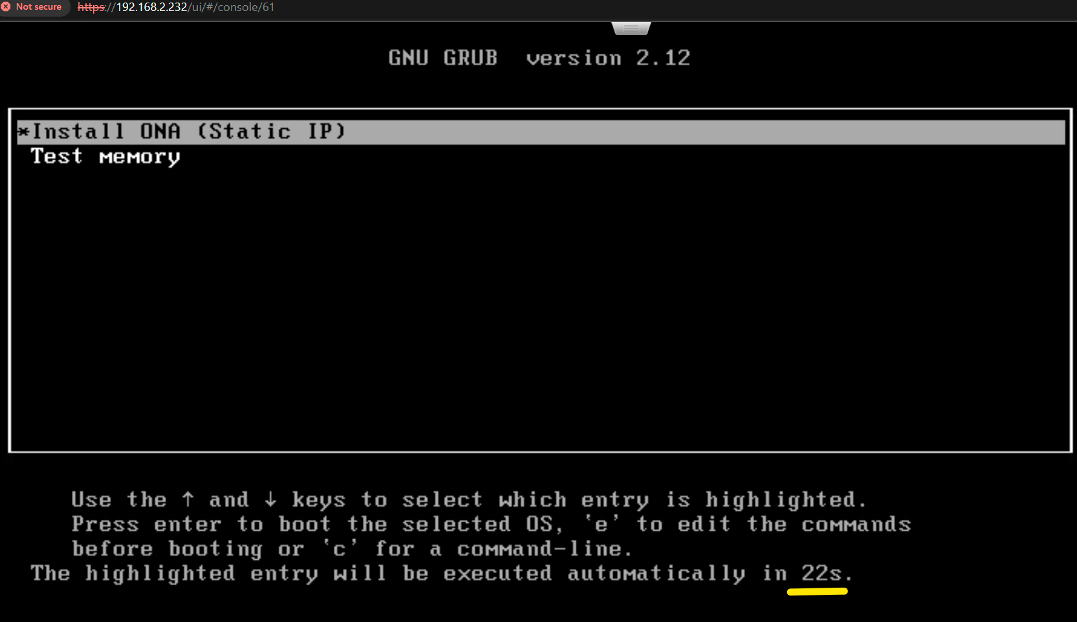
Select Install ONA (Static IP) at the initial prompt, then press Enter.
-
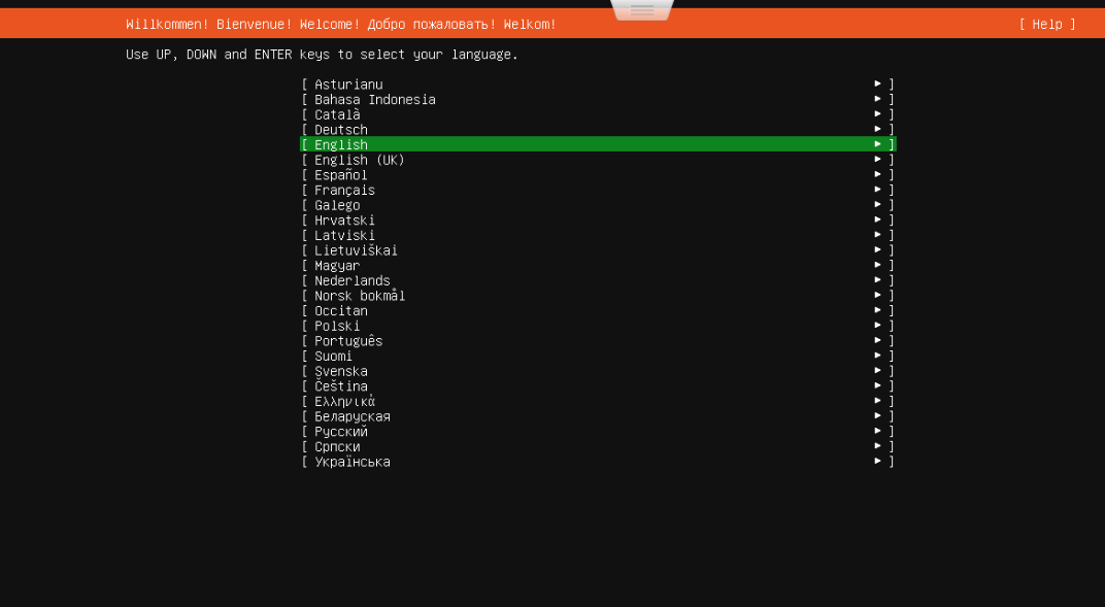
Select a language from the language list using the arrow keys, then press Enter.
-
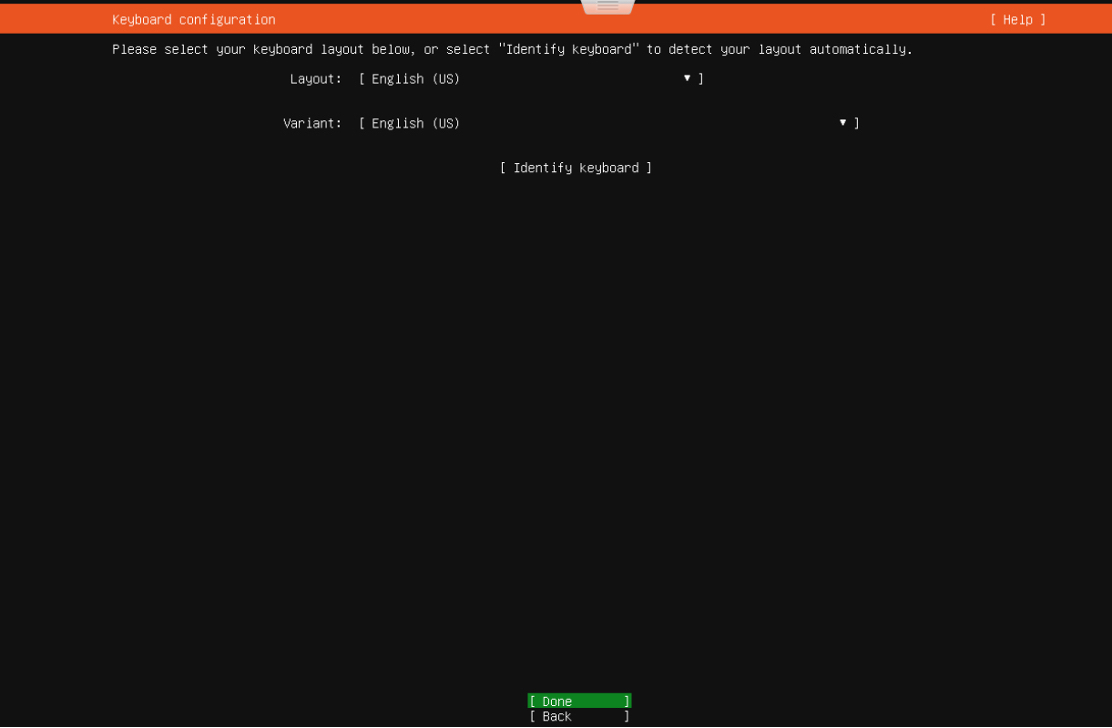
For the Keyboard configuration, you have the following options:
-
Select a Layout and Variant to configure the keyboard, then press Enter.
-
Select Identify keyboard, then press Enter.
-
-
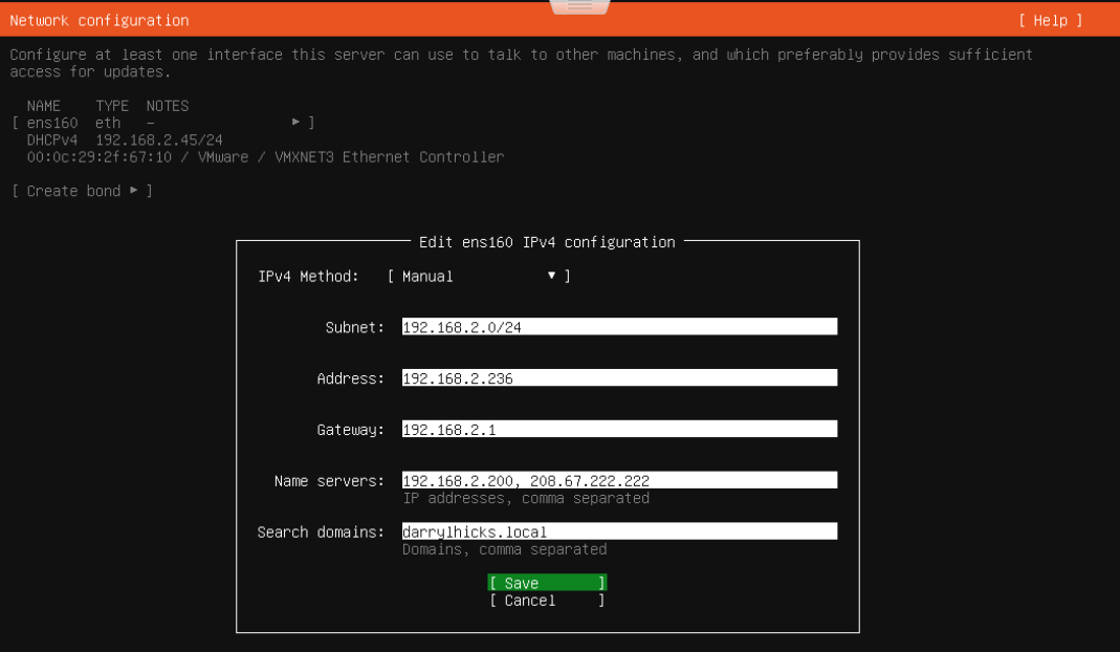
For the Network configuration, select Manual and press Enter.
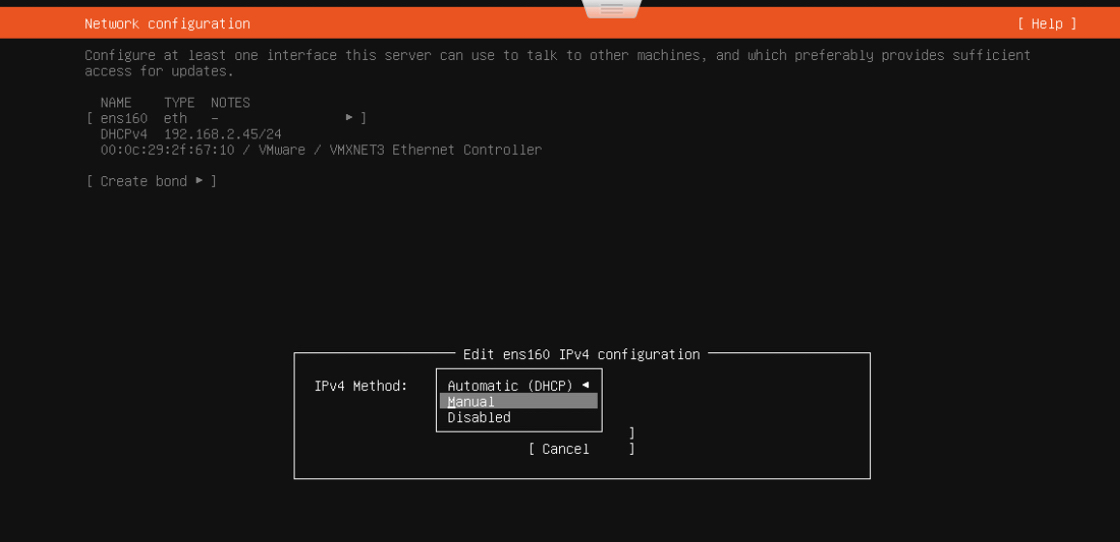
Note: All other network interfaces are automatically configured as Mirror interfaces.
-
Enter a Subnet for the appliance, select Continue with the arrow keys, and press Enter.
-
Enter an IP address for the appliance, select Continue with the arrow keys, and press Enter.
-
Enter a Gateway router IP address, select Continue with the arrow keys, and press Enter.
-
(Optional) For Search domains, enter the domain(s) that will be automatically appended to the hostname when attempting to resolve to an IP address, select Continue with the arrow keys, and press Enter.
Note: By default, the install will automatically use DHCP and proceed with the install. To override the DHCP IP address, you will need to manually edit the interface after the install is complete.
Note: We recommend that you enter a local authoritative name server address if you have one deployed in your network.
-
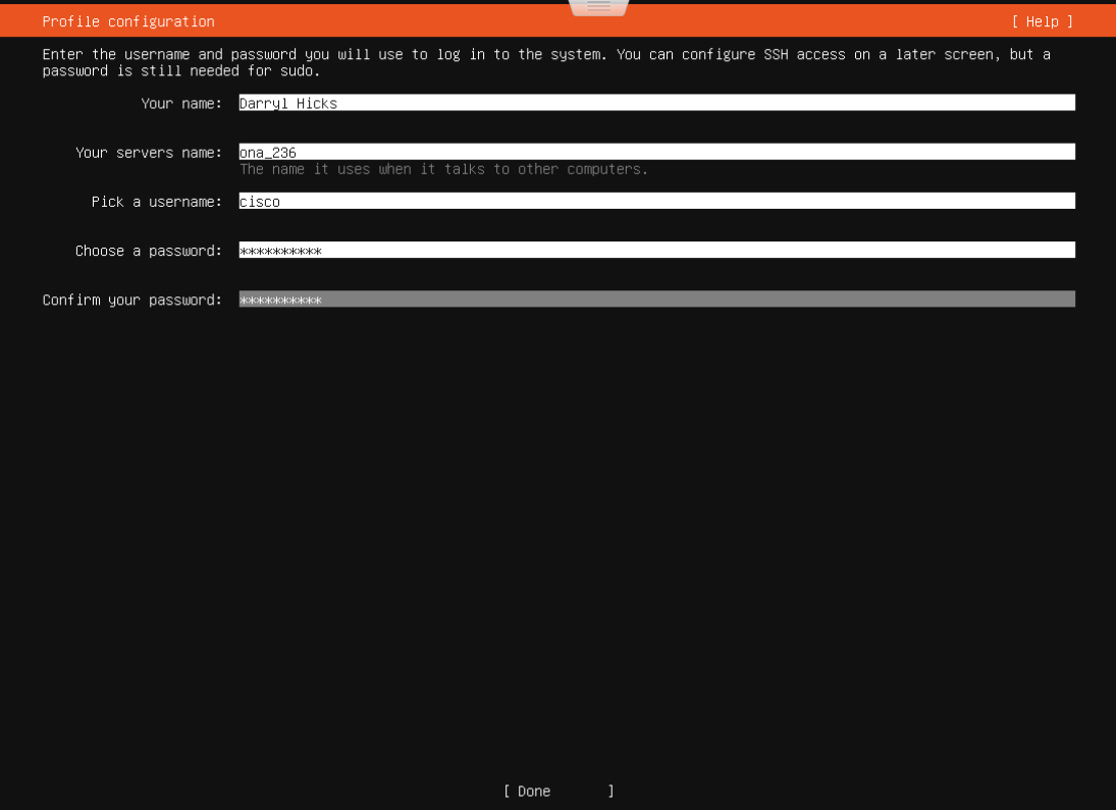
Enter the Full name for the new user, which is associated with a non-root account for administrative permissions, then select Continue with the arrow keys and press Enter.
-
Enter Your servers name, which is the name the sensor will use when communicating with other computers and will be visible in Cisco XDR, then select Continue with the arrow keys and press Enter.
-
Enter the Username for your account, which is the non-root account with administrative permissions, then select Continue with the arrow keys and press Enter.
-
Choose a password for the new user, then select Continue with the arrow keys and press Enter.
-
Re-enter password to verify, then select Continue with the arrow keys and press Enter.
If you did not enter the same password twice, try again.
Note: The account you create during setup is the only account you can use to access the virtual machine. This installation does not create a separate Cisco XDR account.
-
To confirm the installation process, select Continue, then press Enter.
Warning: This action deletes all data on the drive. Ensure it is empty before proceeding.
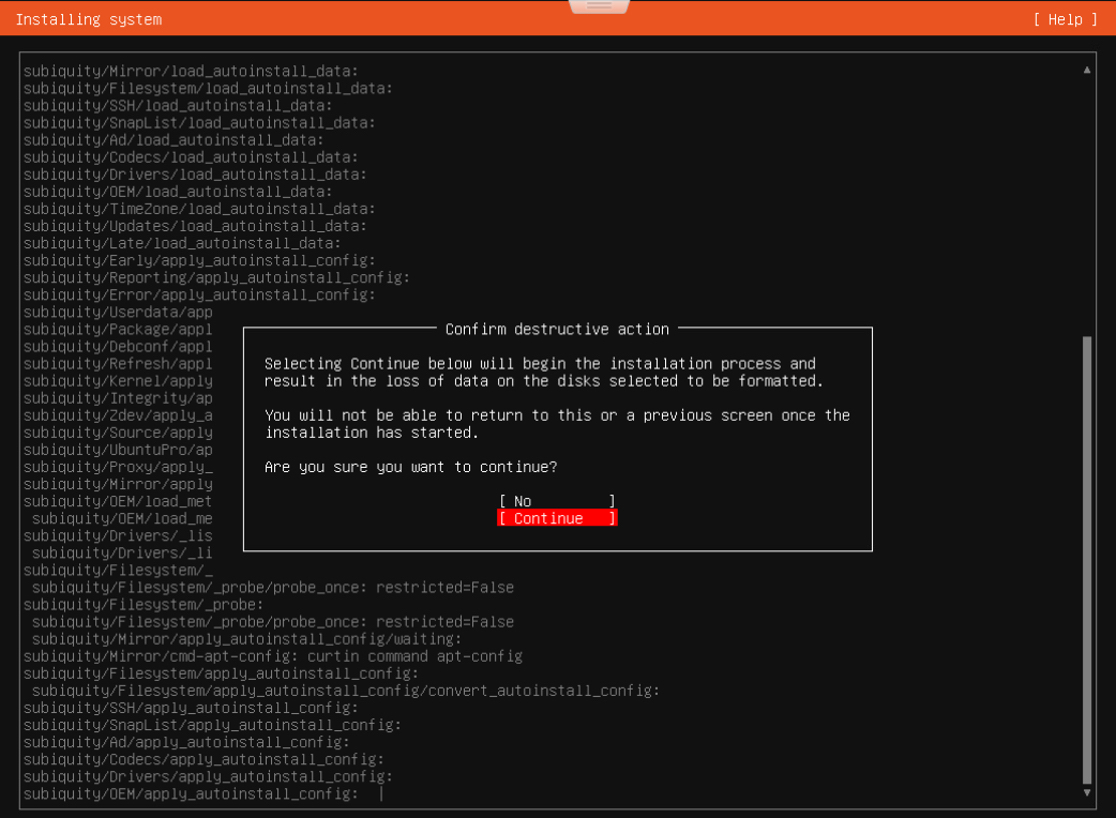
Wait several minutes for the installer to install the required files.
-
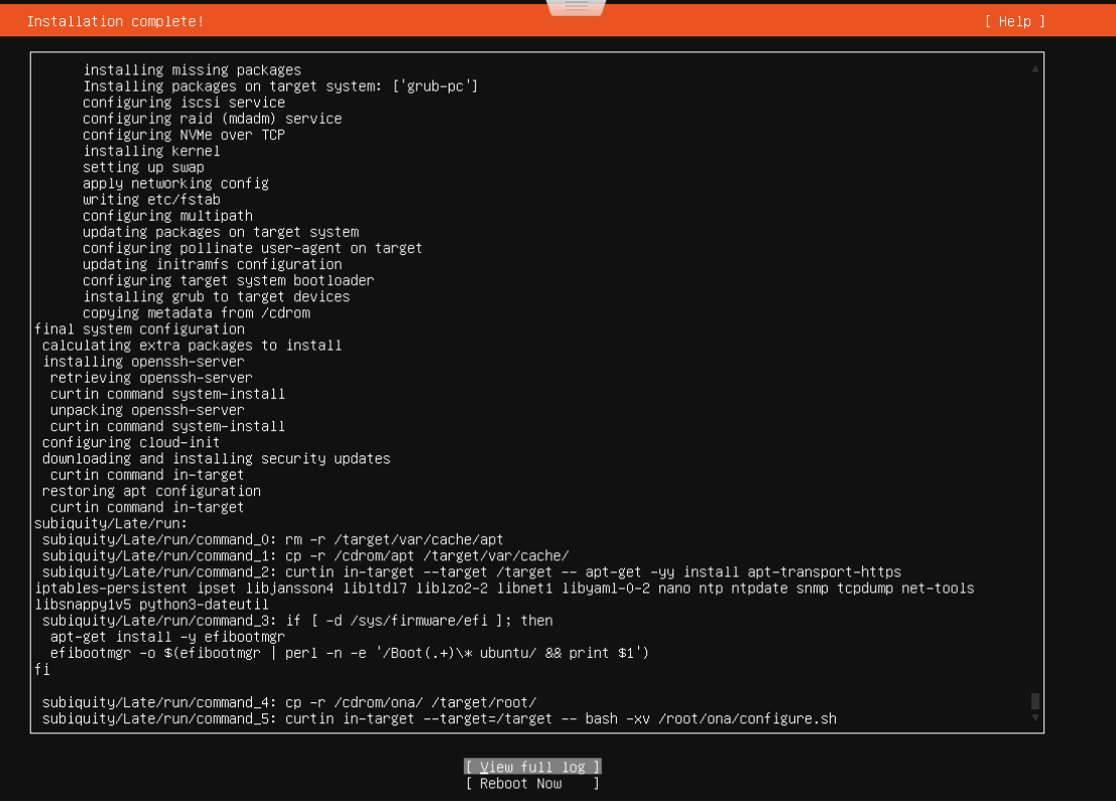
When the installer displays Installation Complete, select Reboot Now with the arrow keys, then press Enter to restart the appliance.
-
After the appliance restarts, log in with the created account to ensure your credentials are correct.
What to Do Next
-
If restricting access to your private environments, make sure that communication with the relevant IPs is allowed. See Sensor Access Requirements for more information.
-
If you are using the sensor to collect network flow traffic, such as NetFlow, see Configure a Sensor to Collect Flow Data for more information on configuring the sensor.
-
If you are using the sensor and attaching it to SPAN or mirror ports to collect mirrored traffic, see Sensors for more information on adding sensors in Cisco XDR.
Send On-Premises Flows from Cisco Telemetry Broker to Cisco XDR
You can configure on-premises flow data to be sent from Cisco Telemetry Broker to Cisco XDR. The following are the supported types of flow data sent from Cisco Telemetry Broker:
-
IPFIX packets
-
Netflow v5 (Cisco Telemetry Broker v1.3 or later)
-
Netflow v9 (Cisco Telemetry Broker v1.3 or later)
For details on how to deploy and configure your Cisco Telemetry Broker to send on-premise flow data to Cisco XDR, see Cisco Telemetry Broker Virtual Appliance Deployment and Configuration Guide and Cisco Telemetry Broker User Guide. We recommend using this method for environments with over 50,000 Flows per Second (FPS).
Once configured, you should see the Cisco Telemetry Broker hostname and information included in the Sensors tab (Administration > Custom Detections > Sensors) and the network activities from Cisco Telemetry Broker on the Activities page (Investigate > Activities).
Manually Install the Package for Linux Operating Systems
In addition to the provided ISO, the Virtual Appliance can be deployed on the following operating systems:
- Ubuntu Linux versions 24.04 (64-bit)
- Docker (64-bit)
Install on Ubuntu with NetFlow collection
To install the sensor on Ubuntu with NetFlow collection, complete the following steps:
Warning: Make sure that you enter the complete command for each step.
- Log in to the Ubuntu system as an administrator and open a command line interface.
- Enter
sudo wget https://assets-production.obsrvbl.com/ona-packages/obsrvbl-ona/v5.1.3/ona-service_UbuntuNoble_amd64.debto download the ONA package. - Enter
sudo apt-get install -y net-tools tcpdumpto install dependencies. - Enter
sudo apt-get update && sudo apt-get install -y libglib2.0-0 liblzo2-2 libltdl7to install updates and additional packages. - Enter
sudo wget https://assets-production.obsrvbl.com/ona-packages/netsa/v0.1.27/netsa-pkg.debto download the package manager file. - Enter
sudo apt install ./ona-service_UbuntuNoble_amd64.deb ./netsa-pkg.debto install the package manager file. - Enter
sudo rebootto reboot Linux. - Confirm services are running. See Appendix C - Services for Cisco XDR services.
Install on Ubuntu without NetFlow collection
To install the sensor on Ubuntu without NetFlow collection, complete the following steps:
Warning: Make sure that you enter the complete command for each step.
- Log in to the Ubuntu system as an administrator and open the command line interface.
- Enter
wget https://assets-production.obsrvbl.com/ona-packages/obsrvbl-ona/v5.1.3/ona-service_UbuntuNoble_amd64.debto download the ONA package. - Enter
sudo apt-get install -y net-tools tcpdumpto install dependencies. - Enter
sudo apt-get -f installto verify dependencies installed properly. - Enter
sudo apt install ./ona-service_UbuntuNoble_amd64.debto install the service. - Confirm services are running. See Services for a list of Linux services.
Install on Docker
To install the sensor on Docker, complete the following steps:
Warning: Make sure that you enter the complete command for each step.
-
Log in to the Docker system as an administrator and open the command line interface.
-
Checkout the ONA service repository on GitHub.
-
Enter the following command to build the container from the ONA directory:
Copydocker build \
--platform linux/amd64 \
--tag obsrvbl/ona-service:latest \
images/docker -
Enter the following example command to update the service key and run it:
Copydocker run \
--platform linux/amd64 \
--name=ona-service \
--net=host \
--cap-add=NET_ADMIN \
--rm \
--tty \
--interactive \
-e OBSRVBL_HOST="https://sensor.ext.obsrvbl.com" \
-e OBSRVBL_SERVICE_KEY="the_service_key" \
-e OBSRVBL_ONA_NAME="ona-sensor-$(whoami)" \
-e OBSRVBL_PNA_IFACES='your_interfaces' \
obsrvbl/ona-service:latest-
To find your
OBSRVBL_HOSTurl, in Cisco XDR, go to Administration > Custom Detections > Sensors. -
To find your
OBSRVBL_SERVICE_KEY, see the first 3 steps of Manually Add Cisco XDR's Service Key to a Sensor. -
OBSRVBL_ONA_NAMEis the name of your sensor. -
OBSRVBL_PNA_IFACESis a list of your interfaces.
Note: The
--net=hostand--cap-add=NET_ADMINflags are required for the ONA-service to be able to monitor the host's network interfaces and generate flow data. -
Verify the Sensor
To verify the status of the sensor, complete the following steps:
-
Enter the following command to log in to the container from a separate terminal window:
docker exec -it ona-service bash -
Enter the following commands to check the logs for errors:
ls -l /opt/obsrvbl-ona/logs/ona_service/tail -f /opt/obsrvbl-ona/logs/ona_service/* -
Ensure the following files exist and do not contain any errors or exceptions in the log directory:
-
ona-hostname-resolver.log -
ona-pdns-monitor.log -
ona-pdns-pusher.log -
ona-pna-pusher.log -
ona-service.log
-
- Confirm services are running. See Services for Cisco XDR services.
Services
Cisco XDR utilizes the following Linux services:
| Service | Enabled by default | Description |
|---|---|---|
obsrvbl-ona |
yes | Monitors for configuration changes and handles automatic updates. Starting this service also starts the other configured services. |
log-watcher (deprecated) |
yes | Tracks the sensor's authentication logs. |
pdns-capturer |
yes | Collects passive DNS queries. |
pna-monitor |
yes | Collects IP traffic metadata. |
pna-pusher |
yes | Sends IP traffic metadata to the cloud. |
hostname-resolver |
yes | Resolves active IP addresses to local hostnames. |
netflow-monitor |
no | Listens for NetFlow data sent by routers and switches. |
netflow-pusher |
no | Sends NetFlow data to the cloud. |
notification-publisher (deprecated) |
no | Relays observations and alerts over syslog or SNMP. |
ossec-alert-watcher (deprecated) |
no | Monitors OSSEC alerts, if installed. |
Cisco XDR Files and Directories
The following private network monitoring Linux directories and file paths contain advanced sensor configuration.
/opt/obsrvbl-ona– This directory contains the Cisco XDR configuration files (config,config.auto,config.local) and various sub-directories created during the sensor installation, including log file directories.-
/opt/obsrvbl-ona/config– This text file, created during the sensor installation, contains default sensor configuration. Cisco recommends that this file is not directly edited, changes should be made inconfig.local. If you want to edit this file, create a backup first. You can reference this file when updating theconfig.localfile. Configuration settings in theconfig.localfile overrides the defaultconfigfile configuration.Information: The most recent version of the config configuration file is located on the Cisco XDR GitHub site at https://github.com/obsrvbl-oss/ona/blob/master/packaging/root/opt/obsrvbl-ona/config.
/opt/obsrvbl-ona/config.auto– This text file contains sensor configuration changes users make from the web portal. For example, if you enable a sensor’s logging to syslog or SNMP from the web portal, the web portal updates this file to include these configuration updates. We recommend that you do NOT edit this file directly.-
/opt/obsrvbl-ona/config.local– This text file contains custom configuration for this sensor. Configuration updates to this file override configuration settings in theconfigconfiguration file. Examples of local configuration include, but are not limited to, enabling flow collection, setting flow collection types (for example, NetFlow v5, IPFIX, etc.), and enabling third-party integrations. -
/opt/obsrvbl-ona/logs/PNA– This directory contains log files related to flows created by the sensor’s Ethernet ports. The sensor periodically uploads these files to the cloud, and empties the directory after it does so. You can monitor this directory to ensure that a mirror port is working properly, as the log files increment in byte count and quantity, relative to the size of the data entering the Ethernet ports.In the following image, the log files are very small, indicating very little Ethernet port traffic. However, the service is running, and actively generating log files.

-
/opt/obsrvbl-ona/logs/ipfix– This directory contains log files collected by the flow data feeds, such as NetFlow and IPFIX. If this directory exists, then flow collection is properly enabled and being received. If this directory does not exist, flow collection is probably not enabled.In the following image, the log files are not incrementing and are empty. The sensor is not receiving flow data.

/etc/iptables– This directory contains theiptablesfirewall configuration files for the sensor.