Incident Tuning
The Incident Tuning page allows you to view and manage incident tuning rules that determine how detections contribute to incident creation. These rules do not control whether a detection is created. For more information about native detection creation, see Native Detections.
Choose Administration > Incident Tuning in the navigation menu to view and manage incident tuning rules.
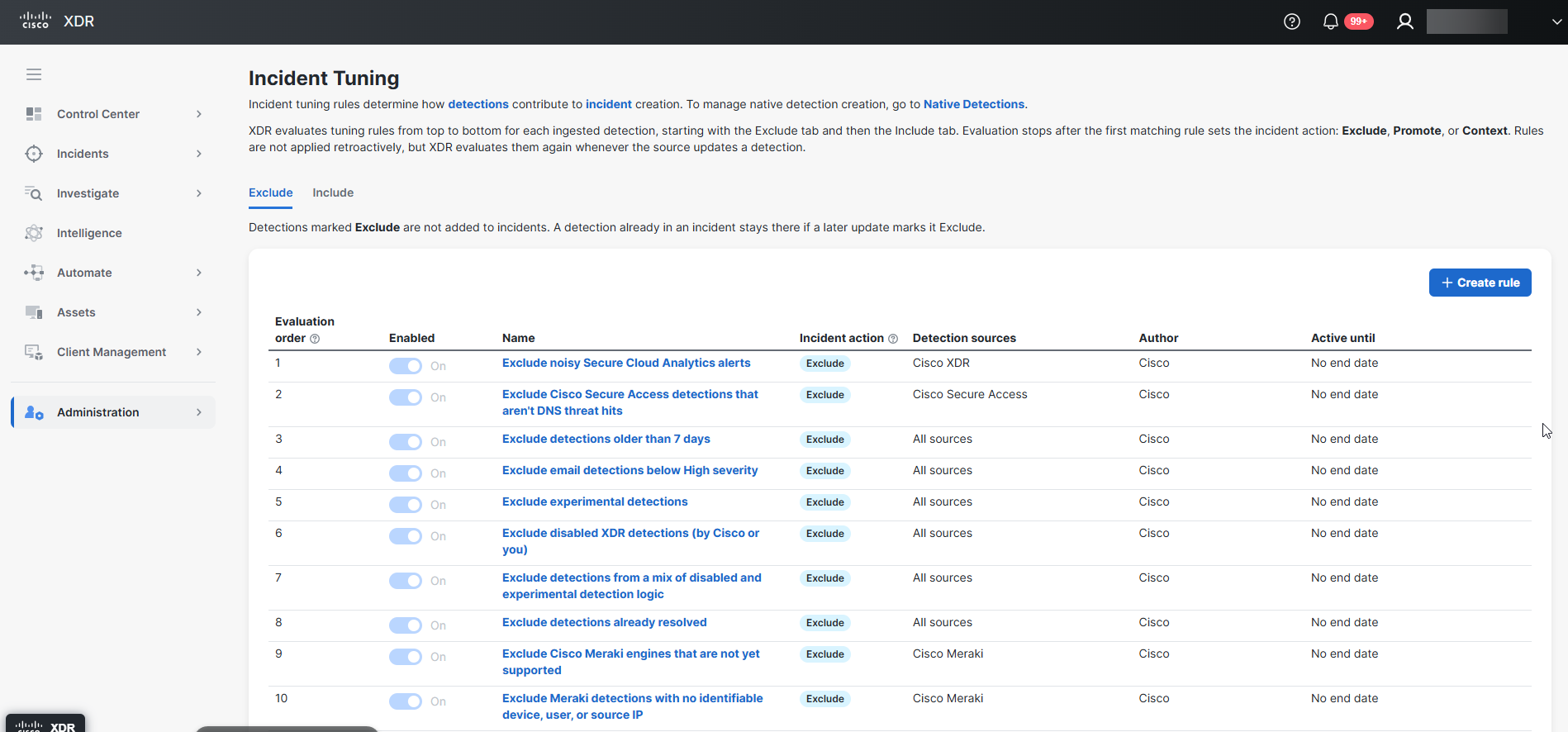
Cisco XDR evaluates rules from top to bottom for each ingested detection, starting with the Exclude tab and then the Include tab. Evaluation stops when the first matching rule sets the incident action.
Incident action determines how the detection contributes to incident creation under the applied incident tuning rule:
-
Promote - Indicates that the detection is always added to an incident. If a detection has no related detections, Cisco XDR creates an incident with this detection alone.
-
Exclude - Indicates that a rule prevents this detection from appearing in incidents.
-
Context - Indicates that the detection may be added to an incident to provide additional context. Cisco XDR does not create an incident for detections marked Context alone.
Rules do not apply retroactively, but Cisco XDR evaluates them again whenever the source updates a detection.
The tables in the Exclude and Include tabs display the evaluation order, enabled status, rule name, incident action, detection sources, author, and active-until date for each rule. Rules are evaluated from the lowest order number to the highest.
Using the Exclude and Include tabs, you can view rule details and create rules. You can also edit, enable or disable, and delete organization-defined rules. Cisco-managed rules are read-only and cannot be changed.
 Exclude
The Exclude tab allows you to view and manage rules that prevent matching detections from appearing in incidents. A detection already in an incident stays there if a later update marks it Exclude.
Create an Exclude Rule
You can create a new Exclude rule in the Exclude tab.
Note: Only users with the Administrator role are allowed to create incident tuning rules.
Perform the following steps to create a new Exclude rule:
-
Choose Administration > Incident Tuning in the left navigation menu.
-
In the Exclude tab, click Create rule.
-
Enter a Name (required) for the rule.
-
In the Description (required) text box, enter more information that fully describes the rule, using the tools on the toolbar to format the text.
-
In the Conditions (required) section, indicate conditions that the rule must meet.
-
In the Detection sources (optional) section, select detection sources the rule applies to.
Leave this empty to apply the rule to all sources.
-
In the Incident action section, review the action the Exclude rule performs.
-
In the Active until (optional) section, indicate the end date for the rule.
The rule is applied through the end of the date you choose, then stops.
-
Turn on or turn off the Enable this rule setting.
-
Click Create rule to create the Exclude rule.
Edit an Exclude Rule
You can edit an Exclude rule in the Exclude tab.
Note: Only users with the Administrator role are allowed to modify incident tuning rules.
Perform the following steps to edit an Exclude rule:
-
Choose Administration > Incident Tuning in the left navigation menu.
-
On the Exclude tab, click an Exclude rule link to open the rule in the incident tuning rule drawer.
-
On the incident tuning rule drawer, click Edit.
-
Make the necessary changes and click Save to apply changes to the rule when completed.
Delete an Exclude Rule
You can delete an Exclude rule in the Exclude tab.
Note: Only users with the Administrator role are allowed to delete incident tuning rules.
Perform the following steps to edit an Exclude rule:
-
Choose Administration > Incident Tuning in the left navigation menu.
-
On the Exclude tab, locate the rule you want to delete.
-
In the rule list, click the
 (Ellipsis) icon for the Exclude rule you want to delete and choose Delete from the drop-down list. Click Delete on the confirmation dialog box.
Include
The Include tab allows you to view and manage rules that promote matching detections to incidents or add them as context to related detections. This includes detections marked Promote or Context .
Create an Include Rule
You can create a new Include rule in the Include tab.
Note: Only users with the Administrator role are allowed to create incident tuning rules.
Perform the following steps to create a new Include rule:
-
Choose Administration > Incident Tuning in the left navigation menu.
-
In the Include tab, click Create rule.
-
Enter a Name (required) for the rule.
-
In the Description (required) text box, enter more information that fully describes the rule, using the tools on the toolbar to format the text.
-
In the Conditions (required) section, indicate conditions that the rule must meet.
-
In the Detection sources (optional) section, select detection sources the rule applies to.
Leave this empty to apply the rule to all sources.
-
In the Incident action section, review the action the Include rule performs.
-
In the Active until (optional) section, indicate the end date for the rule.
The rule is applied through the end of the date you choose, then stops.
-
Turn on or turn off the Enable this rule setting.
-
Click Create rule to create the Include rule.
Edit an Include Rule
You can edit an Include rule in the Include tab.
Note: Only users with the Administrator role are allowed to modify incident tuning rules.
Perform the following steps to edit an Include rule:
-
Choose Administration > Incident Tuning in the left navigation menu.
-
On the Include tab, click an Include rule link to open the rule in the incident tuning rule drawer.
-
On the incident tuning rule drawer, click Edit.
-
Make the necessary changes and click Save to apply changes to the rule when completed.
Delete an Include Rule
You can delete an Include rule in the Include tab.
Note: Only users with the Administrator role are allowed to delete incident tuning rules.
Perform the following steps to edit an Include rule:
-
Choose Administration > Incident Tuning in the left navigation menu.
-
On the Include tab, locate the rule you want to delete.
-
In the rule list, click the
(Ellipsis) icon for the Include rule you want to delete and choose Delete from the drop-down list. Click Delete on the confirmation dialog box.